Playwright with TypeScript: Complete Guide with Examples in 2026
In 2026, TypeScript is the recommended language for Playwright by both Microsoft and the wider testing community. If you are starting a new Playwright project or migrating an existing JavaScript suite, this guide covers everything you need to use Playwright with TypeScript effectively — from setup to typed page objects to advanced patterns.
Why Use TypeScript with Playwright?
Playwright works perfectly well with JavaScript. So why bother with TypeScript?
Catch errors before running tests. TypeScript checks your code at compile time. Typos in method names, wrong argument types, and missing required parameters are caught in your editor before you ever run a test.
Better IDE autocomplete. When Playwright's API is fully typed, your editor shows you every available method and option as you type — with documentation inline. This is especially helpful when you are learning the Playwright API.
Self-documenting code. Type annotations make function signatures clear. A fixture typed as AuthenticatedPage communicates exactly what it provides without reading the implementation.
Refactoring safety. When you rename a method in a page object or change a fixture's return type, TypeScript immediately shows every place that needs to be updated. Without types, these regressions show up as runtime failures instead.
Industry standard. Most professional Playwright projects in 2026 use TypeScript. Knowing TypeScript with Playwright makes you more employable and makes contributing to existing projects easier.
Setting Up Playwright with TypeScript
Step 1 — Create a New Project
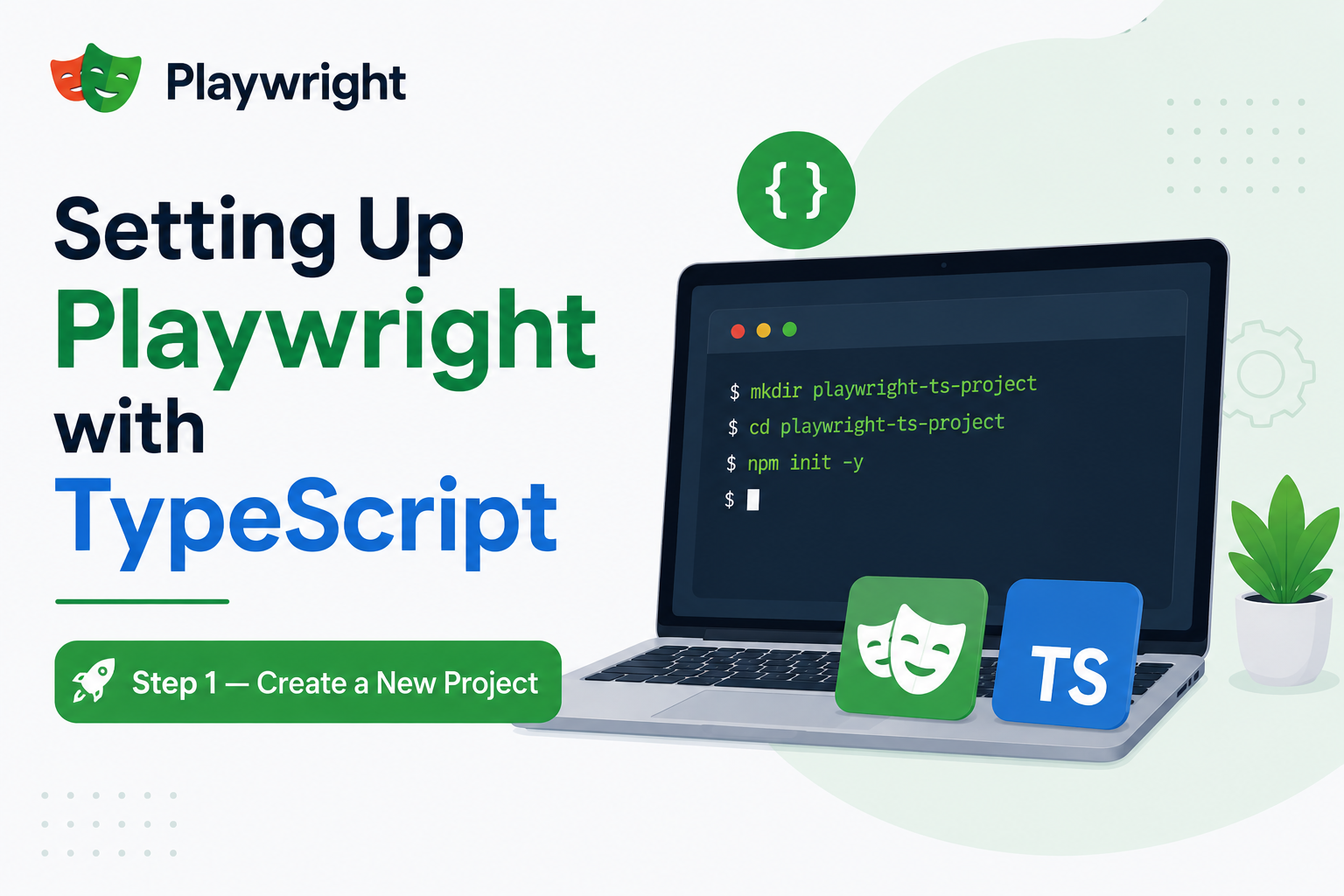
When you run npm init playwright@latest the setup wizard asks whether you want TypeScript or JavaScript. Select TypeScript. The installer creates a TypeScript-configured project with playwright.config.ts, a tsconfig.json, and a sample test in .spec.ts format.
If you already have a JavaScript project and want to migrate, install TypeScript and the necessary type declarations with npm install --save-dev typescript @types/node. Then rename your .spec.js files to .spec.ts and create a tsconfig.json.
Step 2 — Understanding tsconfig.json
Playwright generates a tsconfig.json that works out of the box. The key settings are target set to ES2022 or higher, module set to commonjs, strict set to true for maximum type safety, and paths for module aliases if you use them.
You generally do not need to change the default tsconfig.json for a Playwright project. The Playwright test runner handles TypeScript compilation internally using ts-node — you do not need a separate build step before running tests.
Step 3 — Run Your First TypeScript Test
Run npx playwright test exactly as you would with JavaScript. The test runner compiles TypeScript on the fly. No build step required.
Writing Tests in TypeScript
TypeScript tests look almost identical to JavaScript tests. The main additions are type annotations and imports.
Basic Test Structure
A TypeScript Playwright test file imports test and expect from @playwright/test, defines test cases with the test() function, and uses the typed page fixture. The Page type from @playwright/test gives you full autocomplete on every page method.
The async and await keywords are the same as in JavaScript. TypeScript adds type safety on top of the same API.
Typing Fixture Parameters
Playwright fixtures are automatically typed. When you declare { page } as a parameter in your test function, TypeScript knows page is of type Page from @playwright/test and provides full autocomplete on all its methods.
When you create custom fixtures, you define the type of the fixture value explicitly — which means every test that uses the fixture gets correct type information automatically.
Using the Page Type
Import Page from @playwright/test whenever you need to type a variable that holds a page reference — for example in a helper function that accepts a page as a parameter or in a page object class that stores the page reference.
import { Page } from '@playwright/test';
Similarly import Locator when typing a variable that holds a locator reference, BrowserContext for context references, and APIRequestContext for API request context references.
TypeScript Page Object Models
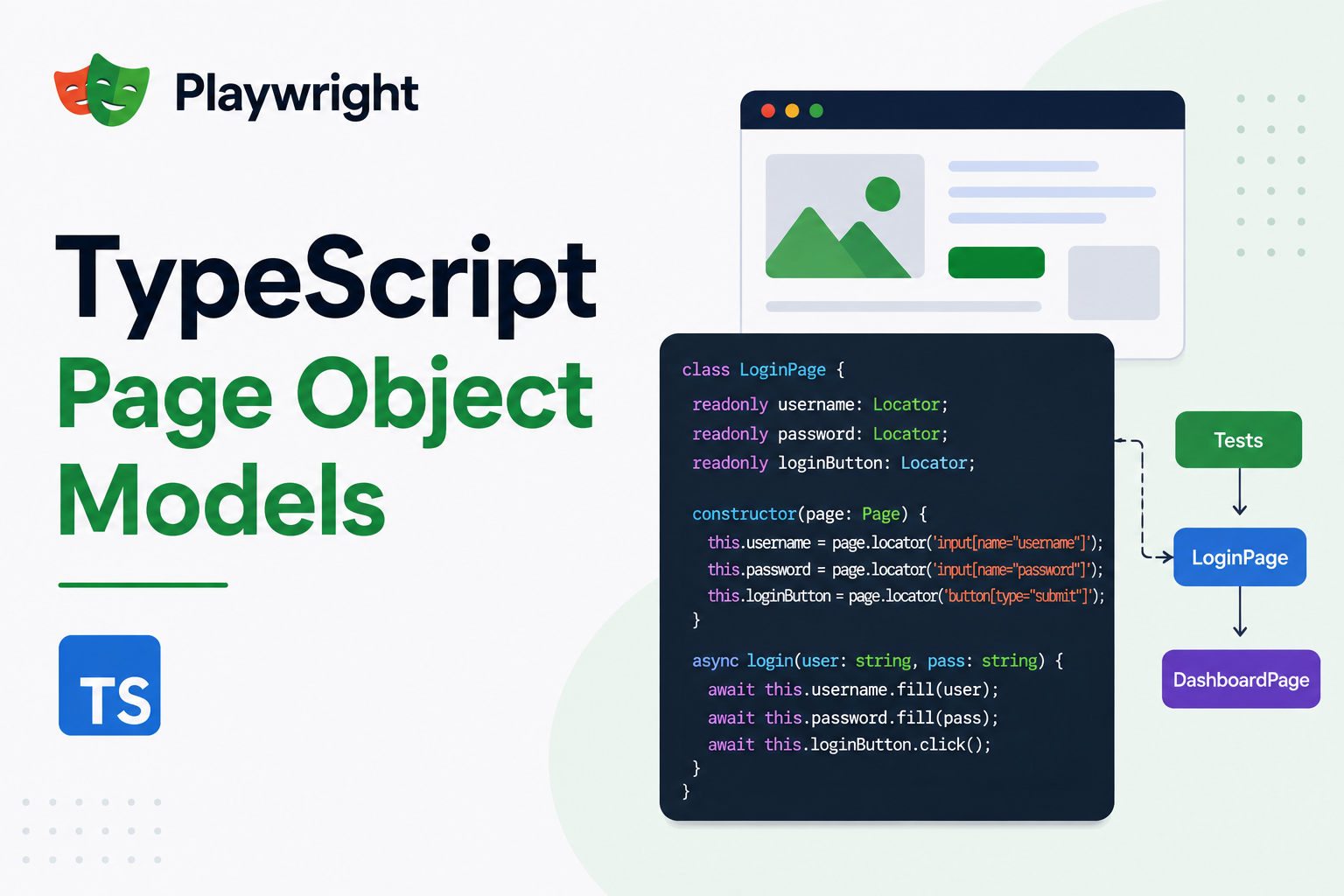
Page Object Models benefit the most from TypeScript. Types make the interface of each page object explicit and catch errors when tests use page objects incorrectly.
Creating a Typed Page Object
A TypeScript page object is a class with a typed page property, typed locators as class properties, and typed methods for user actions.
Define locators as readonly Locator properties in the class. This makes them accessible throughout the class and prevents accidental reassignment. Methods that perform actions return Promise. Methods that retrieve information return the appropriate type — Promise for text, Promise for state checks.
The constructor accepts a Page parameter and assigns it to this.page. Locators are initialised in the constructor using this.page.getByRole(), this.page.getByLabel(), and other locator methods.
Using Page Objects in Tests
Import your page object class in the test file, instantiate it with the page fixture, and call its methods. TypeScript ensures you only call methods that exist and pass the correct argument types.
When you mistype a method name or pass the wrong type of argument, TypeScript highlights the error immediately in your editor — before you run the test.
Returning Page Objects from Actions
For flows where one action navigates to a new page — such as clicking a submit button that leads to a confirmation page — a common pattern is to return the page object for the destination page from the action method.
For example a checkout() method on a CartPage class might return a Promise. This chains page objects naturally in tests and makes the navigation flow explicit in the type signature.
Typed Custom Fixtures
Custom fixtures in TypeScript require type definitions that tell Playwright what each fixture provides. This is done by defining an interface for your custom fixtures and passing it as a type parameter to test.extend().
Defining Fixture Types
Create an interface that lists each custom fixture name and its type. Pass this interface as a type parameter when calling test.extend. TypeScript uses this to type the use callback parameter and the fixture parameters in test functions.
Once your fixture types are defined, every test that imports your custom test object gets full autocomplete on the fixture names and correct types for their values.
Multiple Fixture Type Interfaces
For large projects with many fixtures, organise fixture types into separate interfaces — one for authentication fixtures, one for data fixtures, one for page object fixtures. Combine them with intersection types when passing to test.extend().
This keeps type definitions organised and makes it clear which fixtures belong to which area of the application.
TypeScript Configuration Options
Strict Mode
Set "strict": true in your tsconfig.json. Strict mode enables several TypeScript checks that catch common errors — strictNullChecks prevents passing null or undefined where a value is expected, noImplicitAny requires explicit types on untyped variables, and strictFunctionTypes ensures function type compatibility.
Strict mode may surface type errors in existing JavaScript code you are migrating. Fix these errors rather than disabling strict mode — they represent real potential bugs.
Path Aliases
For projects with deep folder structures, configure path aliases in tsconfig.json to avoid long relative import paths. For example map @fixtures to ./src/fixtures so tests import from @fixtures/auth instead of ../../src/fixtures/auth.
Path aliases require matching configuration in your Playwright config file using the moduleNameMapper option if you use Jest, or no additional config if you use only the Playwright test runner.
Excluding Files
Add non-test TypeScript files to your tsconfig.json include array and exclude compiled output directories. Typically include src//*.ts and tests//*.ts and exclude node_modules and any build output folders.
Typing Test Data
In TypeScript you can define interfaces for your test data — making it clear what shape data should take and catching mistakes when test data is constructed incorrectly.
User Data Types
Define an interface for user objects used in tests — with fields for email, password, name, and role. Use this type when creating test users in fixtures, when passing user data to page object methods, and when asserting on user-related API responses.
interface User { email: string; password: string; name: string; role: 'admin' | 'user' | 'guest'; }
Union types like 'admin' | 'user' | 'guest' for the role field ensure only valid roles can be used — TypeScript catches any typo immediately.
API Response Types
Define types for your API responses and use them when parsing response.json(). This gives you full autocomplete on response body properties and catches mistakes when you access a field that does not exist in the response.
const body = await response.json() as UserResponse;
For more rigorous typing use a validation library like Zod to parse and validate API responses at runtime, ensuring the actual response shape matches your TypeScript type.
Common TypeScript Patterns in Playwright
Optional Parameters with Default Values
TypeScript allows optional parameters with default values in page object methods. For example a login() method might have an optional role parameter that defaults to 'user'. This reduces the need for separate methods for each variation.
Union Types for Multiple States
Use union types to represent elements that can be in multiple states. A method that returns the status of an order might return Promise<'pending' | 'processing' | 'completed' | 'cancelled'>. TypeScript then enforces that callers handle all possible states.
Generics for Reusable Helpers
For helper functions that work with multiple types — a function that waits for any element to reach a certain state, or a function that retries any async operation — use TypeScript generics to make them work correctly with any type while still providing type safety.
Enums for Constants
Use TypeScript enums or const objects to define test constants — user roles, page URLs, API endpoints, element test IDs. This centralises magic strings, makes them easy to find and update, and lets TypeScript catch typos.
Migrating from JavaScript to TypeScript
If you have an existing Playwright JavaScript project and want to migrate to TypeScript, follow these steps.
Step 1 — Install TypeScript
Run npm install --save-dev typescript @types/node to add TypeScript and Node.js type definitions.
Step 2 — Create tsconfig.json
Create a tsconfig.json in your project root. Use the same configuration that npm init playwright@latest would generate — it is well-configured for Playwright projects.
Step 3 — Rename Files
Rename your test files from .spec.js to .spec.ts. Rename helper files, fixtures, and page objects from .js to .ts. TypeScript is backwards compatible with JavaScript — valid JavaScript is valid TypeScript — so most files will compile without errors after renaming.
Step 4 — Fix Type Errors
Run npx tsc --noEmit to check for type errors without compiling output files. Fix errors starting with the most fundamental ones — missing type annotations on function parameters and return types are the most common.
Step 5 — Add Type Annotations Progressively
You do not need to type everything at once. Start by typing fixture parameters and page object constructors. Add more specific types over time as you refactor and add new features. TypeScript's any type is an escape hatch for code you have not typed yet — use it sparingly and replace it with specific types as you go.
TypeScript vs JavaScript for Playwright
| Feature | TypeScript | JavaScript |
|---|---|---|
| Compile-time error checking | Yes | No |
| IDE autocomplete quality | Excellent — fully typed | Good — inferred types |
| Setup complexity | Slightly higher | Lower |
| Refactoring safety | High | Lower |
| Learning curve | Moderate | Lower |
| Industry adoption | Standard in 2026 | Common in smaller projects |
| Build step required | No — Playwright compiles inline | No |
Frequently Asked Questions
Do I need to compile TypeScript before running Playwright tests?
No. The Playwright test runner compiles TypeScript automatically using ts-node when you run npx playwright test. There is no separate build step. This makes the development workflow identical to JavaScript — edit your .spec.ts files and run tests directly.
Can I mix TypeScript and JavaScript files in the same Playwright project?
Yes. TypeScript is backwards compatible with JavaScript and Playwright supports both file extensions. You can have .spec.ts and .spec.js files in the same project. This is useful when migrating an existing JavaScript project — you can convert files to TypeScript gradually.
Does TypeScript make Playwright tests slower?
No. The TypeScript compilation adds a small one-time overhead when the test runner starts, but individual tests run at exactly the same speed. The compilation is incremental and cached — subsequent runs are faster than the first.
What TypeScript version should I use with Playwright?
Use TypeScript 5.0 or higher. Playwright's type definitions use modern TypeScript features and are fully compatible with TypeScript 5.x. Always keep TypeScript updated alongside Playwright to avoid type compatibility issues.
Is strict mode required for Playwright TypeScript projects?
It is not required but strongly recommended. Strict mode catches the classes of errors that are most likely to cause test failures at runtime — null reference errors, incorrect types, and implicit any. The initial effort to fix strict mode errors pays off in long-term reliability.
How do I type the response body from an API request in Playwright?
Parse the response body with await response.json() and cast it to your defined interface using as YourResponseType. For more safety use a runtime validation library like Zod to parse the response and validate it matches your type at runtime — not just at compile time.
Justin is a self-taught developer who builds and runs DeelCart himself — from the articles to the server it runs on. He manages his own Linux infrastructure and writes guides based on tools and workflows he actually uses day to day.