Playwright API Testing: Complete Guide with Examples in 2026
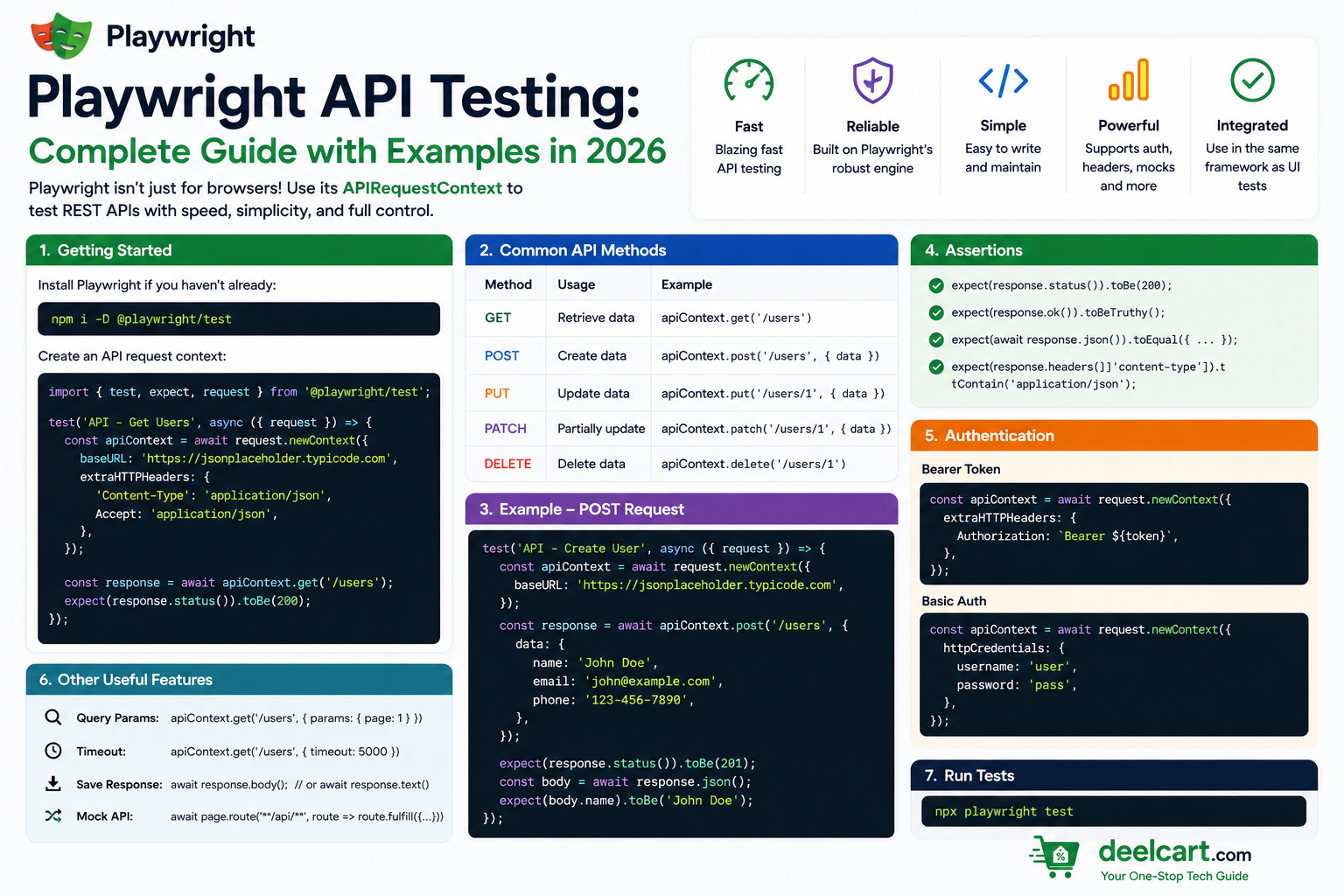
In 2026, Playwright's API testing features have matured to the point where many teams use it as their primary tool for both UI and API testing — keeping everything in one framework, one test runner, and one report.
This guide covers everything you need to know about Playwright API testing — making requests, validating responses, handling authentication, combining API and UI tests, and best practices.
Why Use Playwright for API Testing?
Most teams already have a dedicated API testing tool — Postman, Insomnia, or a library like Supertest or Axios. So why use Playwright?
One framework for everything. Your UI tests and API tests run in the same framework, the same test runner, and produce the same report. No switching between tools or maintaining two separate test suites.
Powerful fixtures. You can use the request fixture to make API calls in your fixtures — seeding test data via API before a UI test runs, then cleaning it up via API after.
Shared assertions. The same expect() API works for both UI assertions and API response assertions. One thing to learn, used everywhere.
Authentication handling. Playwright's request context handles cookies, session tokens, and headers automatically across multiple requests — just like a real HTTP client.
CI/CD integration. API tests run in the same pipeline as your UI tests with no additional setup.
The request Fixture
The entry point for API testing in Playwright is the request fixture. It is a built-in fixture available in every test — the same way page is available for browser tests.
The request fixture provides an APIRequestContext object that can make GET, POST, PUT, PATCH, and DELETE requests to any URL. It handles cookies, follows redirects, and supports all standard HTTP features.
You access it the same way as any other fixture — by declaring it as a parameter in your test function.
Making GET Requests
A GET request retrieves data from an API. Use request.get() and pass the URL:
const response = await request.get('https://api.example.com/users');
After making the request you can check the response status, read the body, and make assertions:
response.status()returns the HTTP status code as a numberresponse.ok()returns true if the status is between 200 and 299response.json()parses the response body as JSONresponse.text()returns the response body as a plain stringresponse.headers()returns the response headers as an object
Making POST Requests
A POST request sends data to create a new resource. Use request.post() and pass the URL along with a data object:
const response = await request.post('https://api.example.com/users', { data: { name: 'Justin', email: '[email protected]' } });
The data option serialises your object as JSON and sets the Content-Type: application/json header automatically.
After creating a resource you typically assert that the status is 201 Created, that the response body contains the created resource with an assigned ID, and that the returned data matches what you sent.
Making PUT and PATCH Requests
PUT replaces an entire resource. PATCH updates specific fields. Both work the same way as POST — pass the URL and a data object:
const response = await request.put('https://api.example.com/users/1', { data: { name: 'Updated Name' } });
const response = await request.patch('https://api.example.com/users/1', { data: { email: '[email protected]' } });
Assert that the response status is 200 OK and that the returned body reflects your changes.
Making DELETE Requests
A DELETE request removes a resource:
const response = await request.delete('https://api.example.com/users/1');
After deleting, assert that the status is 200 OK or 204 No Content depending on your API's convention. Then optionally make a follow-up GET request to verify the resource no longer exists and returns a 404 status.
Asserting API Responses
Playwright provides specific assertions for API responses using the same expect() API as UI assertions.
Assert Response is Successful
await expect(response).toBeOK();
This passes if the status code is between 200 and 299. It is the most common API assertion.
Assert Specific Status Code
expect(response.status()).toBe(201);
expect(response.status()).toBe(404);
Assert Response Body
Parse the JSON body and assert on its properties:
const body = await response.json();
expect(body.name).toBe('Justin');
expect(body.id).toBeDefined();
expect(body.users).toHaveLength(10);
Assert Response Headers
expect(response.headers()['content-type']).toContain('application/json');
Sending Request Headers
Many APIs require custom headers — authentication tokens, API keys, or content type specifications. Pass them in the headers option:
const response = await request.get('https://api.example.com/protected', { headers: { 'Authorization': 'Bearer your-token-here', 'X-API-Key': 'your-api-key', 'Accept': 'application/json' } });
Query Parameters
Pass query parameters using the params option — Playwright serialises them into the URL automatically:
const response = await request.get('https://api.example.com/users', { params: { page: 1, limit: 20, status: 'active' } });
This is equivalent to requesting https://api.example.com/users?page=1&limit=20&status=active.
Authentication
Bearer Token Authentication
The most common API authentication pattern. Add the Authorization header to every request:
const response = await request.get('https://api.example.com/profile', { headers: { 'Authorization': Bearer ${token} } });
Creating an Authenticated Request Context
If all your API requests need the same authentication headers, create a dedicated request context with those headers set as defaults. This way you do not need to pass the header on every individual request.
Use playwright.request.newContext() to create a new context with default headers, then use that context for all authenticated requests in your test.
Cookie-Based Authentication
For APIs that use cookie-based sessions, make a login request first to obtain the session cookie, then use the same request context for subsequent requests. Playwright automatically stores and sends cookies between requests in the same context — just like a real browser session.
Combining API and UI Tests
One of the most powerful patterns in Playwright is combining API calls with UI tests. This lets you use the API for fast setup and teardown while still testing the UI for the parts that matter.
Using API Calls for Test Setup
Instead of clicking through a registration form before every test that needs a logged-in user, call the registration API directly. Instead of creating a product through the admin UI before testing the product page, create it via the API. This makes your tests dramatically faster and more reliable.
A typical pattern is to use the request fixture inside a custom fixture to create test data via API before the test runs and delete it via API in the teardown after use().
Using API Calls to Verify UI Actions
After performing a UI action — submitting a form, clicking a delete button, completing a checkout — make an API call to verify the backend state changed correctly. This is more reliable than trying to observe backend side effects through the UI alone.
For example after a UI test that creates a new user through a signup form, make a GET request to the users API and assert that the new user exists in the response.
Using UI Tests to Set Up Session State
The reverse pattern is also useful — perform a login through the UI once, save the session state using context.storageState(), and restore it in API tests that need an authenticated session. This is the standard approach for testing APIs that rely on browser session cookies.
Creating a Standalone API Request Context
The request fixture is scoped to a test. If you need to make API calls outside of a test — for example in a global setup file that runs before your entire test suite — use playwright.request.newContext() to create a standalone request context.
This is useful for global setup that seeds a database, creates admin accounts, or configures test environment state before any tests run. Always call dispose() on the context when you are done to release resources.
Handling API Errors
Well-written API tests verify error responses as well as success responses. Test that your API returns the correct error codes and messages for invalid inputs, missing authentication, and non-existent resources.
A complete API test suite covers:
- 200 OK — successful GET and PUT requests
- 201 Created — successful POST requests
- 204 No Content — successful DELETE requests
- 400 Bad Request — invalid input data
- 401 Unauthorized — missing or invalid authentication
- 403 Forbidden — authenticated but not permitted
- 404 Not Found — resource does not exist
- 422 Unprocessable Entity — validation errors
- 500 Internal Server Error — unexpected server failures
Organising API Tests
Separate API Tests from UI Tests
Keep API tests in a separate folder from UI tests — for example tests/api/ and tests/ui/. This makes it easy to run them independently in CI/CD pipelines and keeps each type of test focused.
Group Tests by Resource
Organise API test files by the resource they test — users.spec.ts, products.spec.ts, orders.spec.ts. Each file covers the full CRUD operations for one resource. This mirrors how REST APIs are typically structured and makes tests easy to find.
Use a Base URL
Set a baseURL in your Playwright config so you do not repeat the full domain in every test. Then use relative paths in your request.get() calls. This makes it trivial to run the same tests against different environments — development, staging, production — by changing one config value.
Playwright API Testing vs Postman
| Feature | Playwright | Postman |
|---|---|---|
| Combined UI and API testing | Yes — one framework | No — API only |
| Version control friendly | Yes — plain code files | Limited — JSON exports |
| CI/CD integration | Native | Via Newman CLI |
| Visual interface | No | Yes |
| Parallel execution | Native | Limited |
| Fixture and setup reuse | Powerful fixture system | Pre-request scripts |
| Learning curve | Moderate — requires coding | Low — visual interface |
Frequently Asked Questions
Can Playwright replace Postman for API testing?
For teams that already use Playwright for UI testing, yes — Playwright's API testing capabilities cover everything Postman does programmatically. Postman's visual interface makes it better for exploratory API testing and sharing collections with non-technical team members. For automated testing in CI/CD, Playwright is more powerful.
Does Playwright API testing require a browser?
No. When you use the request fixture or playwright.request.newContext() without a page, no browser is launched. API tests run as pure HTTP requests with no browser overhead — making them fast and lightweight.
Can I test GraphQL APIs with Playwright?
Yes. GraphQL APIs are accessed via HTTP POST requests with a JSON body containing the query and variables. Use request.post() with your GraphQL endpoint, pass the query in the data option, and assert on the response body the same way as any other JSON API.
How do I handle API rate limiting in tests?
Add delays between requests using page.waitForTimeout() or structure your tests to avoid hitting rate limits by using different test accounts for different test workers. Worker-scoped fixtures can also help by reusing authenticated sessions rather than creating new ones for every test.
Can I use Playwright API testing with TypeScript?
Yes — and it is recommended. TypeScript gives you type checking on request options and response bodies, better IDE autocomplete, and catches errors before your tests run. The Playwright API is fully typed and works seamlessly with TypeScript.
How do I run only API tests and skip UI tests?
Organise your API tests in a separate folder and use Playwright's --testDir flag or create a separate project in your config that points only to the API test folder. You can then run npx playwright test --project=api to run only API tests in your CI pipeline.
Justin is a self-taught developer who builds and runs DeelCart himself — from the articles to the server it runs on. He manages his own Linux infrastructure and writes guides based on tools and workflows he actually uses day to day.