Dropbox vs Google Drive: Which is Better in 2026? (Full Comparison)
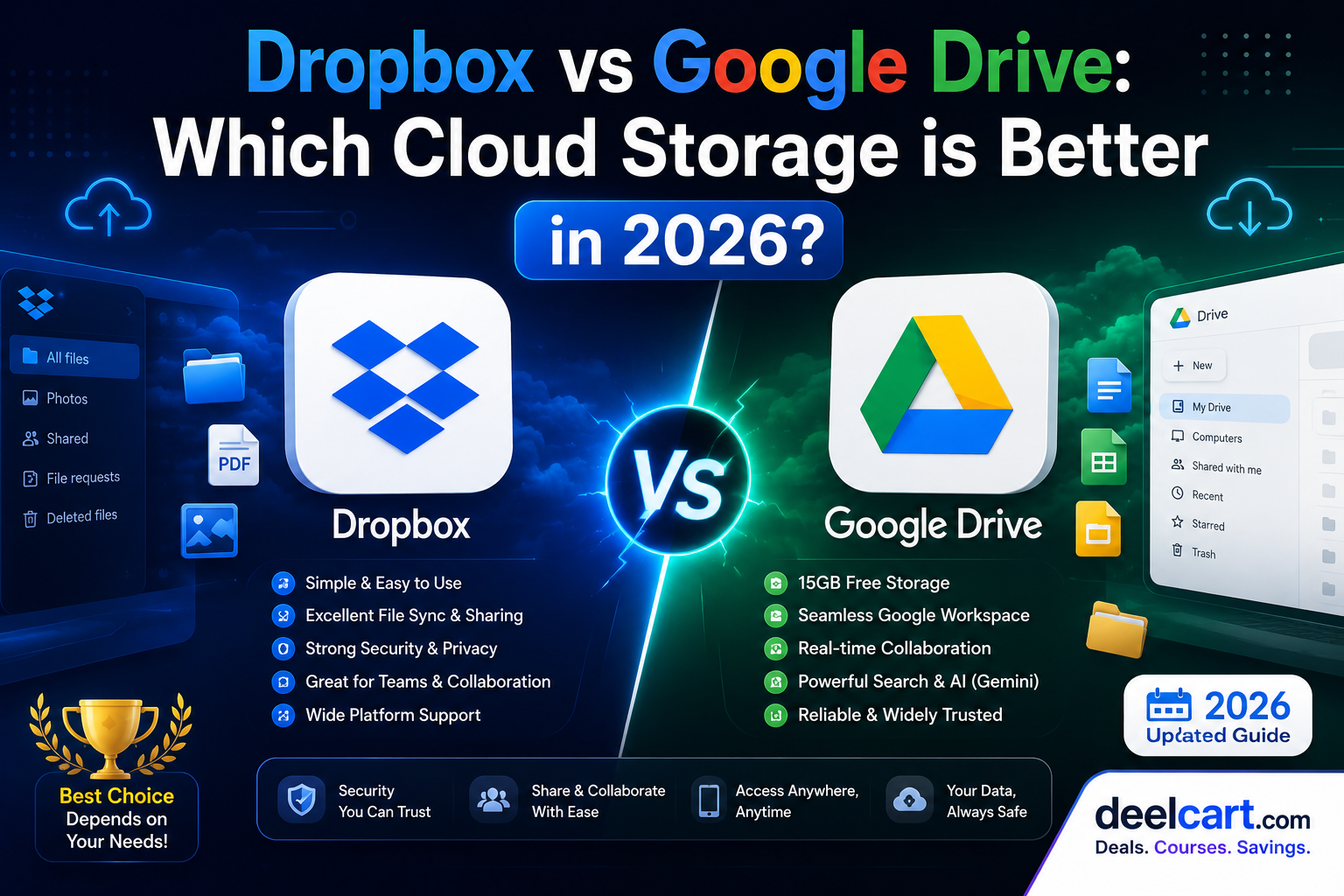
This guide compares Dropbox and Google Drive across every important category — storage, pricing, speed, collaboration, security, and more — so you can choose the right one for your needs in 2026.
Quick Overview
Dropbox launched in 2007 and essentially invented the modern cloud sync folder concept. It focuses on doing one thing extremely well — syncing files fast and reliably across every device and platform.
Google Drive launched in 2012 and took a different approach — integrating cloud storage with a full suite of productivity tools including Google Docs, Sheets, Slides, Forms, and Gmail. For most users, Google Drive is not just storage — it is a complete workspace.
In 2026, both services have matured significantly. The question is not which one is better in absolute terms — it is which one fits your specific workflow better.
Storage and Pricing
Free Storage
- Dropbox: 2GB free — one of the lowest free tiers of any cloud storage service
- Google Drive: 15GB free — shared across Gmail, Drive, and Google Photos
Paid Plans
Dropbox paid plans:
- Plus: 2TB storage — $11.99/month (billed annually)
- Essentials: 3TB storage — $22/month (billed annually)
- Business: 9TB+ storage — $22/user/month (minimum 3 users)
- Business Plus: 15TB+ storage — $26/user/month
- 100GB — $2.99/month or $29.99/year
- 200GB — $3.99/month or $39.99/year
- 2TB — $9.99/month or $99.99/year
- 5TB and above — available on higher tiers
File Syncing Speed and Reliability
This is where Dropbox has historically had a clear advantage — and still does in 2026.
Dropbox uses a technology called block-level sync, which means when you change a file, only the changed portion of the file is uploaded — not the entire file. This makes syncing dramatically faster, especially for large files that are frequently edited.
Google Drive syncs entire files by default, which is slower for large files and uses more bandwidth.
Dropbox also has a feature called Smart Sync, which shows files in your folder as if they are downloaded but only pulls them from the cloud when you open them — saving local storage space without losing access.
Winner: Dropbox for sync speed and reliability, especially for large files and power users who sync frequently across multiple devices.
Collaboration and Productivity Tools
This is where Google Drive has an overwhelming advantage.
Google Drive is deeply integrated with Google Workspace — Google Docs, Sheets, Slides, Forms, Meet, Calendar, and Gmail. Every file you create in Google Drive is automatically saved, versioned, and shareable. Multiple people can work on the same document simultaneously with real-time cursor tracking and commenting.
Dropbox has Paper (its document tool) and integrations with Zoom, Slack, and Microsoft Office, but it cannot compete with the depth and quality of Google's native productivity suite.
If your team already uses Gmail and Google Workspace, Drive is a natural extension of that workflow. Switching to Dropbox would mean adopting a separate set of tools.
Winner: Google Drive — it is not close. The integration with Google Docs, Sheets, and Slides alone makes Google Drive the more productive choice for teams and individuals who create documents, spreadsheets, and presentations regularly.
File Sharing and Permissions
Both services allow you to share files and folders with granular permission controls — view only, comment, or edit.
Dropbox advantages:
- Shared links work without the recipient needing a Dropbox account
- Password-protected sharing links on paid plans
- Link expiry dates on paid plans
- Transfer tool for sending large files to anyone
- Sharing directly to a Google account is seamless
- Anyone with the link can view without an account
- Google Workspace admins have fine-grained control over organisational sharing
Winner: Tie for most users. Dropbox edges ahead for businesses with sensitive file-sharing needs.
Security and Privacy
Both Dropbox and Google Drive use AES-256 encryption for files at rest and TLS encryption for files in transit. Both offer two-factor authentication and detailed access logs on business plans.
Dropbox advantages:
- End-to-end encryption available via Dropbox Vault
- More granular admin controls on business plans
- Less data collection than Google
- Google's business model is built around data — while Drive files are not used to train AI models or serve ads, Google does collect metadata about your usage
- Google Workspace admins have strong security controls for enterprise
- Advanced Protection Programme available for high-risk users
Winner: Dropbox for privacy-conscious users. Google Drive for enterprise security controls within Google Workspace.
Platform and Device Support
Dropbox:
- Windows, macOS, Linux, iOS, Android
- Desktop app creates a native sync folder that behaves like any local folder
- Strong Linux support — rare among cloud storage providers
- Works with any third-party app that can access the file system
- Windows, macOS, iOS, Android
- Linux support via browser only — no official native desktop sync app
- Deep integration with ChromeOS and Android
- Works natively in every Google product
Offline Access
Both services allow offline access to files, but with different approaches.
Dropbox syncs files locally to your device by default — files are always available offline unless you use Smart Sync to keep them cloud-only. This is simple and reliable.
Google Drive requires you to manually mark files for offline access in the desktop or mobile app. Google Docs, Sheets, and Slides support offline editing natively in Chrome, but other file types require the file to be explicitly downloaded.
Winner: Dropbox for offline access — simpler, more reliable, and works automatically without manual configuration.
AI Features in 2026
Both services have added AI features that are worth knowing about.
Dropbox AI:
- AI-powered file search that understands natural language queries
- Summarise long documents and meeting recordings automatically
- Ask questions about documents stored in your Dropbox
- Gemini integration across all Google Workspace apps
- Summarise documents, emails, and files
- Generate content inside Docs and Sheets with AI
- NotebookLM integration for deep research across your files
- Ask questions about anything stored in your Drive
Which Should You Choose?
| Your Situation | Best Choice |
|---|---|
| Free storage with generous space | Google Drive |
| Fast and reliable file syncing | Dropbox |
| Document creation and collaboration | Google Drive |
| Linux user | Dropbox |
| Privacy-conscious user | Dropbox |
| Already using Gmail and Google Workspace | Google Drive |
| Team collaboration and AI features | Google Drive |
| Budget-conscious personal user | Google Drive |
The Verdict
Choose Google Drive if you use Gmail, create documents and spreadsheets regularly, collaborate with a team, or want the most storage for free. Google Drive is the better all-round productivity tool for the majority of users.
Choose Dropbox if you need the fastest and most reliable file syncing, work on Linux, handle sensitive files that you prefer not to store with Google, or need advanced sharing controls for external clients.
Many professionals use both — Google Drive for document creation and team collaboration, and Dropbox for syncing large project files and client deliverables.
Frequently Asked Questions
Is Google Drive safer than Dropbox?
Both use the same encryption standards and are equally safe for most users. Dropbox collects less user data than Google overall, which gives it a privacy edge. For enterprise security controls, Google Workspace has more mature admin tooling.
Can I use both Dropbox and Google Drive at the same time?
Yes. Many professionals do. You can install both desktop apps and use each for different purposes — Dropbox for fast file sync and client deliverables, Google Drive for documents and team collaboration.
Which is better for students?
Google Drive. The free 15GB tier, Google Docs, Sheets, and Slides are more than enough for most students — and they are completely free. Many schools and universities also provide Google Workspace for Education accounts with unlimited storage.
Which is better for businesses?
It depends on your existing stack. If your team uses Microsoft 365, Dropbox integrates better. If your team uses Google Workspace, Google Drive is the natural choice. For businesses that need the fastest sync and most advanced sharing controls, Dropbox Business is worth the higher price.
Does Dropbox work with Google Docs?
Yes. You can store Google Docs files in Dropbox and open them, but they open in Google Drive in a browser rather than natively in Dropbox. The integration is functional but not seamless.
Justin is a self-taught developer who builds and runs DeelCart himself — from the articles to the server it runs on. He manages his own Linux infrastructure and writes guides based on tools and workflows he actually uses day to day.