How to Host Multiple Next.js Apps on One VPS with PM2 and Nginx (Without Port Conflicts)
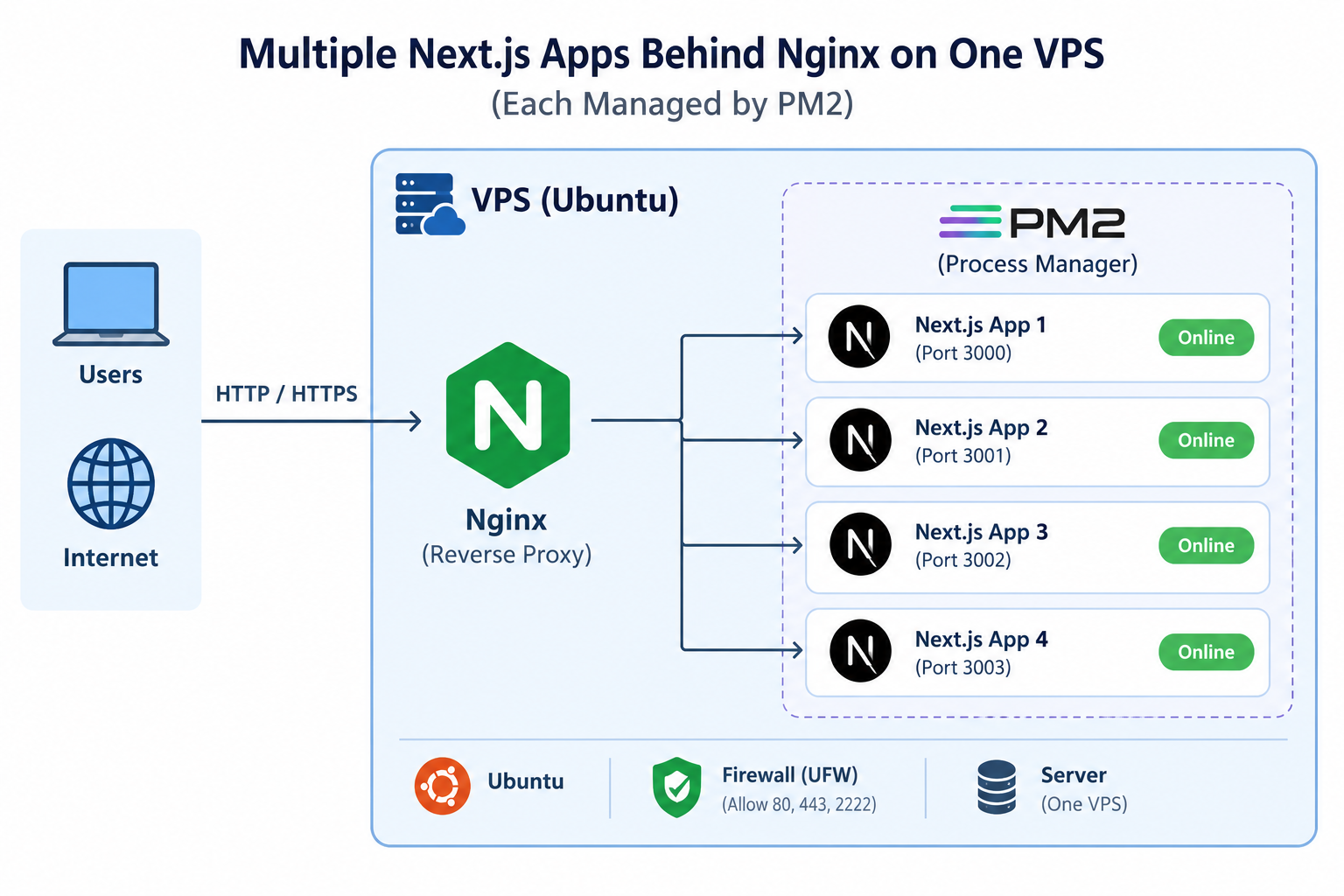
The one recurring failure mode is a port conflict: two apps configured to listen on the same port, so one of them crash-loops in PM2 while the other stays up. I've hit this more than once, most recently when a new app's PM2 config still had the port setting copied from an older project. This guide is the exact setup I use to avoid that, plus how to actually diagnose it when it happens anyway. It also covers two things I got wrong for a long time: leaving app ports reachable from the public internet, and not knowing which of two port settings actually wins.
The Quick Answer
- Give every app its own dedicated port (3000, 3006, 3010…) and set it in one place only, the
startscript inpackage.json - Bind each app to 127.0.0.1 so it's reachable only through Nginx, never directly by IP and port
- Run each app under PM2 with an
ecosystem.config.js, and persist the process list withpm2 saveandpm2 startup - Point each domain at its app through an Nginx server block that reverse-proxies to
127.0.0.1:<port> - When something won't start, check
pm2 logsfirst: port conflicts show up immediately asEADDRINUSE - Keep a ports file and check it with a short script

Why This Approach (Instead of Docker or Separate VPSs)
Before the how-to: why bother with PM2 + Nginx instead of just containerizing everything or renting a separate droplet per site?
For a handful of low-to-moderate traffic sites, a single VPS running multiple PM2 processes behind Nginx is dramatically cheaper and simpler to operate than the alternatives. Docker adds real value once you have a team, CI/CD, or need to guarantee environment parity across machines. For one person managing a handful of Next.js sites, it's often more overhead than it's worth. A separate VPS per site multiplies your hosting bill for sites that individually use a fraction of a server's capacity.
The trade-off is that everything shares the same machine's resources and the same process manager's configuration, which is exactly why port management has to be deliberate rather than assumed.
Step 1: Give Every App Its Own Port, Set in One Place
next start with no flags defaults to port 3000. If you have more than one Next.js app on the same server and you don't explicitly assign ports, the second one you start will fail with EADDRINUSE, or take whichever port you happened to leave configured.
I keep a simple map of which app owns which port:
- App A → 3000
- App B → 3006
- App C → 3010
- App D → 3020
Set the port in your package.json start script, and bind to localhost while you're there:
{
  "scripts": {
    "start": "next start -p 3006 -H 127.0.0.1"
  }
}
The -p flag sets the port and -H sets the hostname the server binds to. The Next.js CLI docs list both options. The reason for -H 127.0.0.1 is the next-but-one step.
Step 2: Configure PM2, and Don't Set the Port Twice
This is the step that actually caused a real outage for me. I have an ecosystem.config.js pattern for each app, and it's tempting to copy one app's config as a starting point for the next one. If you copy the file and forget to change a port value, PM2 will happily start the new app, and it will immediately crash because the port is already taken by the app you copied from.
Here's the pattern I use now, one file per app. Note what's not in it: no PORT.
// ecosystem.config.js
module.exports = {
  apps: [{
    name: 'app-b',
    script: 'npm',
    args: 'start',
    cwd: '/var/www/app-b',
    instances: 1,
    exec_mode: 'fork',
    max_memory_restart: '1200M',
    node_args: '--max-old-space-size=1024',
    env: {
      NODE_ENV: 'production',
    },
  }],
};
The PM2 ecosystem file docs cover every option here. The reason I removed PORT from the env block: having the port in both package.json and the ecosystem file means two places that can drift apart. When a port is given both as the -p flag and as the PORT environment variable, the flag takes priority, so a stale PORT: 3000 copied from another project is silently ignored and the app binds to whatever -p says. That sounds harmless until you realize the file looks like it controls the port and doesn't. One source of truth removes the question.
Don't take my word for which one wins on your Next.js version. The startup log tells you what was actually bound:
pm2 logs app-b --lines 20 --nostream
# look for the "Local:  http://127.0.0.1:3006" line
If you change the port or any environment value, don't just pm2 restart. A restart reuses the already-loaded environment and won't pick up the change. Remove and re-add the process:
pm2 delete app-b
pm2 start ecosystem.config.js
pm2 save
Step 3: Keep App Ports Off the Public Internet
When I looked at the startup log for one of my apps, next start printed a Network: line containing the droplet's public IP and the app's port. That means the app was listening on all interfaces, so anyone could reach http://YOUR-IP:3006 directly and skip Nginx entirely: no HTTPS, no security headers, no rate limits you've configured at the proxy. Binding to 127.0.0.1 (the -H flag above) fixes that at the source. Confirm it:
sudo ss -tlnp | grep 3006
# you want 127.0.0.1:3006, not 0.0.0.0:3006 or *:3006
Then add a firewall as a second layer, so a future misconfiguration doesn't quietly expose a port. With UFW, allow only SSH and web traffic:
sudo ufw allow OpenSSH
sudo ufw allow 'Nginx Full'
sudo ufw enable
sudo ufw status
Always allow SSH before enabling the firewall, and keep a second session open while you do it, for the same reason I describe in securing SSH access on a public VPS. Apps now talk to the world only through ports 80 and 443.
Step 4: Diagnosing a Port Conflict When It Happens
The symptom is always the same: pm2 list shows the app status as errored, and it will show a high restart count because PM2 keeps trying and failing in a tight loop.
pm2 list
# app shows status: errored, restarts climbing rapidly

pm2 logs app-b --lines 30
The log will show something like:
Error: listen EADDRINUSE: address already in use 127.0.0.1:3006That tells you exactly what's wrong: something else already has that port. Find out what:
sudo lsof -i :3006
# or
sudo ss -tulpn | grep :3006
This gives you the PID and process name currently bound to that port. From there it's usually one of two situations: a genuinely different app is supposed to be on that port (fix the conflicting app's config instead), or it's an orphaned process from an earlier crash that never released the port (kill it and restart cleanly).
Step 5: Route Each Domain to Its App with Nginx
Once every app has its own port and is confirmed running (pm2 list shows online, not errored), Nginx is what maps a public domain name to the right internal port. Each app gets its own server block:
server {
    listen 80;
    server_name appb.example.com www.appb.example.com;

    location / {
        proxy_pass http://127.0.0.1:3006;
        proxy_http_version 1.1;
        proxy_set_header Upgrade $http_upgrade;
        proxy_set_header Connection 'upgrade';
        proxy_set_header Host $host;
        proxy_set_header X-Real-IP $remote_addr;
        proxy_set_header X-Forwarded-For $proxy_add_x_forwarded_for;
        proxy_set_header X-Forwarded-Proto $scheme;
        proxy_cache_bypass $http_upgrade;
    }
}
Two details matter here. The Upgrade/Connection headers are what let WebSocket connections (used by some app features) pass through the proxy correctly. And note 127.0.0.1 rather than localhost: localhost can resolve to the IPv6 address ::1, and if your app is bound only to the IPv4 loopback, Nginx tries ::1, gets refused, and returns a 502 even though the app is healthy. Using the literal IPv4 address removes that whole class of problem. The ngx_http_proxy_module reference documents every proxy_* directive used above.
Save this in /etc/nginx/sites-available/appb.example.com, symlink it into sites-enabled, then test and reload:
sudo ln -s /etc/nginx/sites-available/appb.example.com /etc/nginx/sites-enabled/
sudo nginx -t && sudo systemctl reload nginx
nginx -t is worth running every time before reloading. It validates the config syntax and will catch a typo before it takes down every site on the server, not just the one you're editing.
Add a Catch-All So Unknown Hosts Don't Land on Your First App
When a request arrives with a Host header that matches no server block, Nginx serves it from the default server, which is the first block it loaded unless you say otherwise (how Nginx picks a server). That means a bot hitting your IP address directly can get one of your real sites served back. A tiny explicit default block closes the connection instead:
server {
    listen 80 default_server;
    listen [::]:80 default_server;
    server_name _;
    return 444;   # Nginx-specific: close the connection without a response
}

server {
    listen 443 ssl default_server;
    listen [::]:443 ssl default_server;
    ssl_reject_handshake on;   # needs Nginx 1.19.4 or newer
}
When You Get a 502 Bad Gateway
A 502 and an EADDRINUSE are different problems and are easy to confuse. EADDRINUSE means two apps want the same port. A 502 means Nginx is fine but can't reach anything on the port it was told to use. Check in this order:
# 1. Is the app actually up on that port, from the server itself?
curl -I http://127.0.0.1:3006

# 2. What does Nginx say about it?
sudo tail -n 20 /var/log/nginx/error.log

# 3. Is PM2 happy?
pm2 list
An error like connect() failed (111: Connection refused) in the Nginx log means nothing is listening on that port: the app is stopped, crash-looping, or the proxy_pass port doesn't match the port the app really bound. If curl to 127.0.0.1:3006 works but the domain returns 502, the proxy_pass line is wrong. If neither works, the problem is the app, so go back to pm2 logs.
Step 6: Add HTTPS with Certbot
Once the plain-HTTP routing works, adding a free TLS certificate for each domain is one command per domain with Certbot:
sudo certbot --nginx -d appb.example.com -d www.appb.example.comCertbot edits the Nginx server block automatically to add the certificate paths and a redirect from port 80 to 443. Renewal is scheduled for you, but don't assume it works. I wrote up what to verify in setting up automated Let's Encrypt renewals behind Nginx, after one certificate on a multi-domain server expired anyway.
Make It Survive a Reboot
PM2 does not restart your apps after a server reboot unless you set that up. Two commands, both required:
pm2 startup        # prints a command to run; it registers a systemd service
pm2 save           # saves the current process list so it's restored on boot
Run the command that pm2 startup prints, then pm2 save after any time you add or remove an app. Forgetting pm2 save after adding a new app is a classic way to have it vanish at the next reboot while the others come back fine.
Watch Memory as You Add Apps
Every Next.js process holds its own copy of Node in memory. The max_memory_restart and --max-old-space-size settings in the ecosystem file above cap how much one app can take before PM2 restarts it, which stops a single leaking app from starving the rest. On a small droplet, a swap file is a cheap safety net too, and I cover it in setting up a swap file to prevent Node.js out-of-memory crashes. Check live usage with pm2 monit.
Keeping Track as You Add More Apps
Once you're past two or three apps, an ad-hoc mental map of ports stops being reliable. I keep a plain text file on the server itself, /root/ports.txt, listing every app, its port, and its domain. It takes thirty seconds to update when adding a new app:
# name   port  domain
app-a    3000  appa.example.com
app-b    3006  appb.example.com
app-c    3010  appc.example.com
app-d    3020  appd.example.com
A short script reads that file, flags any port assigned twice, and checks that something is actually listening on each one:
#!/usr/bin/env bash
# check-ports.sh - flags duplicate port assignments and ports nothing is listening on
# ports file format (one app per line):  name  port  domain
FILE="${1:-/root/ports.txt}"
[ -f "$FILE" ] || { echo "ports file not found: $FILE"; exit 2; }

status=0
dups=$(awk '!/^[[:space:]]*#/ && NF {print $2}' "$FILE" | sort | uniq -d)
if [ -n "$dups" ]; then
  echo "DUPLICATE PORT ASSIGNMENT: $(echo $dups)"
  status=1
fi

while read -r name port domain; do
  [[ -z "$name" || "$name" == \#* ]] && continue
  if ss -ltn "sport = :$port" | grep -q LISTEN; then state="listening"; else state="NOT LISTENING"; status=1; fi
  printf '%-14s %-6s %-28s %s\n' "$name" "$port" "$domain" "$state"
done < "$FILE"

exit $status
Run it after adding or changing an app:
chmod +x check-ports.sh
./check-ports.sh
I tested it against a ports file with a deliberate duplicate and one port with nothing listening. It reported both and exited non-zero, so you can also run it from cron and alert on failure the way I do in my uptime monitoring script. Once the apps are online, hardening the Nginx proxy with security headers is the next worthwhile step.
Frequently Asked Questions
Can two Next.js apps share the same port if they're on different domains?
No. The port is what Nginx proxies to internally, and it's independent of the public domain. Two apps on the same port will conflict regardless of what domain name points to them, because the operating system only allows one process to bind to a given port at a time.
Do I need Docker to do this safely?
No. Docker can make port isolation more automatic (each container can bind to the same internal port and be mapped to different host ports), but it's not required. Explicit, well-documented port assignment in package.json achieves the same isolation without the added complexity of container orchestration for a small number of apps.
Why bind to 127.0.0.1 if Nginx already sits in front?
Because Nginx only protects traffic that goes through it. If an app also listens on the public interface, anyone can reach it directly at http://YOUR-IP:3006, bypassing HTTPS and every header or limit you configured in Nginx. Binding to loopback makes Nginx the only way in, and the firewall makes that a second guarantee.
What happens if I restart the server? Do my apps come back automatically?
Only if you've run pm2 save after starting your apps and set up PM2's startup script with pm2 startup, which configures a systemd service to resurrect your saved process list on boot. Without both steps, a server reboot will leave all your apps stopped.
How many Next.js apps can realistically run on one small VPS?
This depends entirely on traffic and the memory and CPU of the droplet, not on some fixed app-count limit. On a modest droplet (a few GB of RAM), three to five low-to-moderate-traffic Next.js apps running in PM2's fork mode is a reasonable range before you should start watching memory pressure closely with pm2 monit or considering a bigger instance.
Is PM2's cluster mode worth using here?
Cluster mode runs multiple instances of one app across CPU cores for higher throughput on a single app. It solves a different problem than hosting multiple separate apps. For most personal or small-business multi-site setups, fork mode (one process per app) is simpler to reason about and sufficient.
Justin is a self-taught developer who builds and runs DeelCart himself — from the articles to the server it runs on. He manages his own Linux infrastructure and writes guides based on tools and workflows he actually uses day to day.