How to Set Up Automated Daily Backups for MongoDB to an External S3 Object Storage Bucket
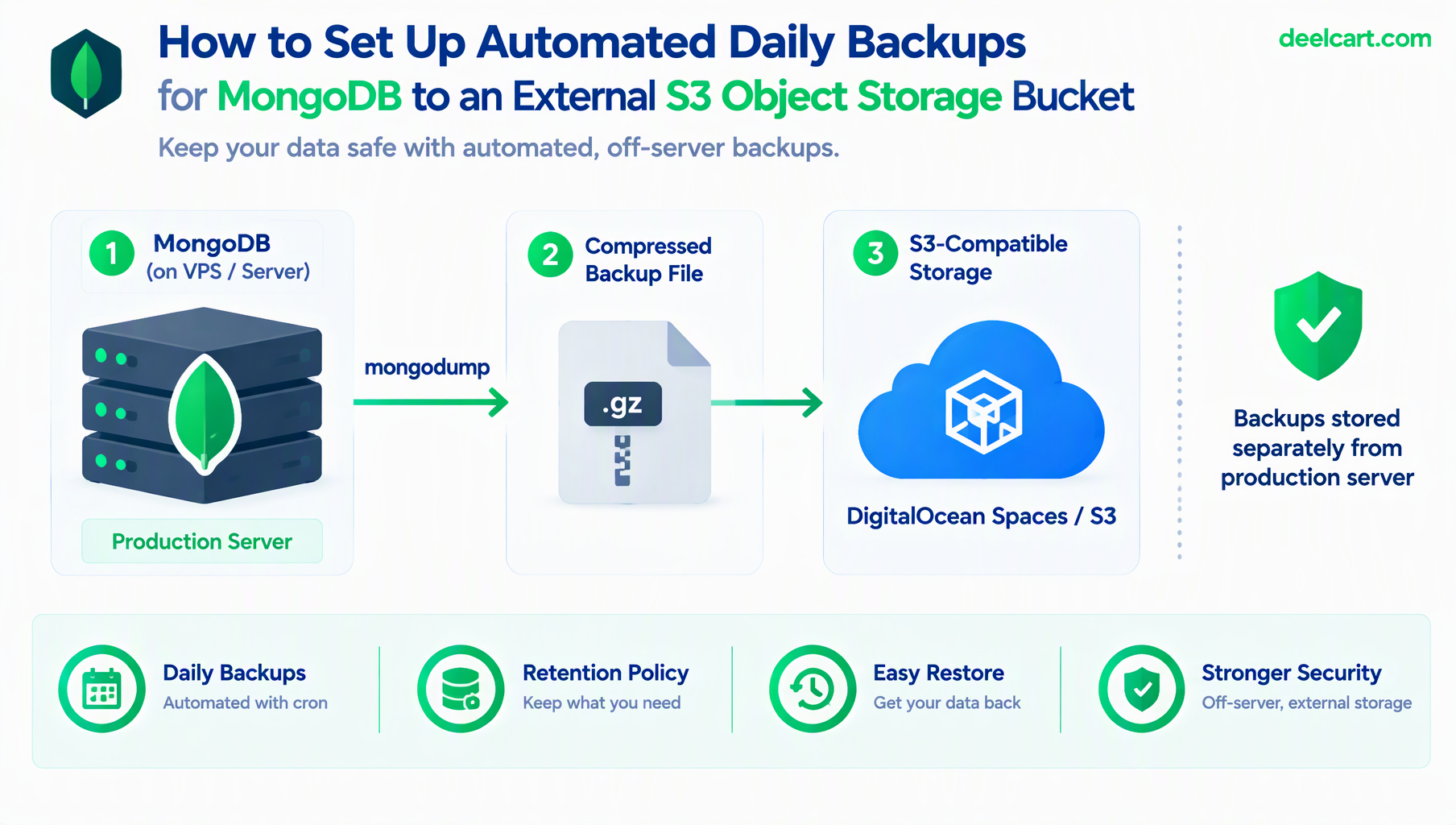
The fix is straightforward in concept: back up on a schedule, and send that backup somewhere physically and logically separate from the server it came from. Here's the actual setup.
Step 1: Taking a Backup With mongodump
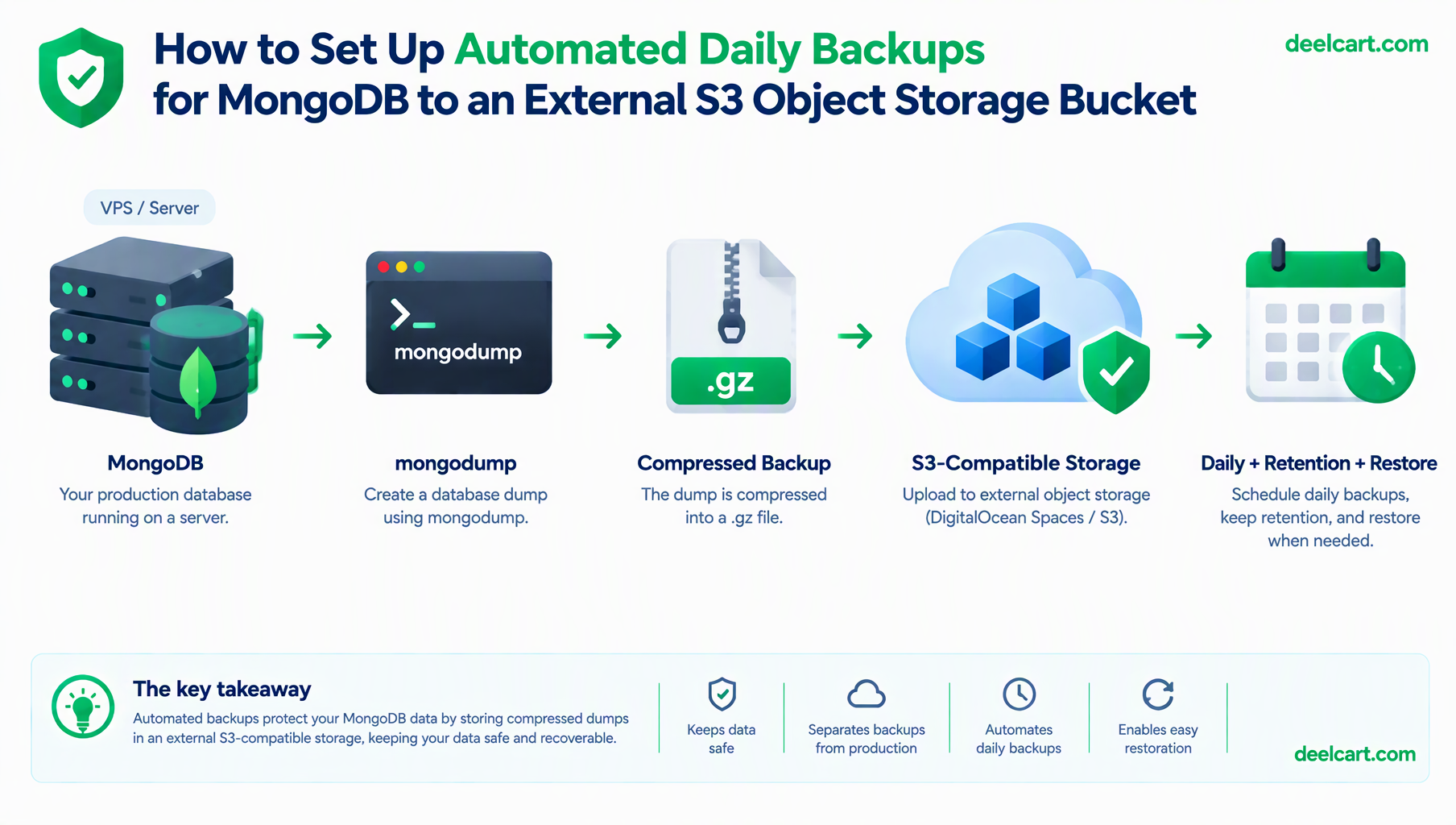
MongoDB's own mongodump utility produces a backup of a database (or the whole instance) that can be restored with mongorestore. The --archive flag bundles everything into a single file rather than a directory of files, and --gzip compresses it — both make the next step (uploading it somewhere) simpler:
mongodump --uri="mongodb://127.0.0.1:27017/mydb" --gzip --archive=/tmp/mydb-backup.gzThis produces one compressed file containing a full logical backup of the database. For a small-to-medium sized MongoDB instance, this approach is simple and sufficient — very large deployments sometimes need filesystem-level snapshotting instead for speed, but that's a different scale of problem than most self-managed setups actually have.
Step 2: An S3-Compatible Bucket (Doesn't Have to Be AWS)
"S3" here means the S3 API, not necessarily Amazon specifically — DigitalOcean Spaces, Backblaze B2, and several other object storage providers all speak the same S3-compatible API, which means the same tooling works against any of them by pointing at a different endpoint. Since my droplet is already on DigitalOcean, using Spaces keeps the backup traffic on the same provider's network rather than introducing another vendor, though the setup below works identically against any S3-compatible provider.
The AWS CLI works against any of these with an --endpoint-url override:
aws s3 cp /tmp/mydb-backup.gz s3://my-backup-bucket/mongodb/ \
  --endpoint-url https://nyc3.digitaloceanspaces.com
Step 3: A Script That Actually Does the Full Job
Individually running a dump command and an upload command isn't automation — the actual script needs a timestamped filename (so each day's backup doesn't overwrite the last one), and cleanup of the local temporary file once it's safely uploaded:
#!/bin/bash
set -e  # exit immediately if any command fails, rather than continuing on a broken state

DATE=$(date +%Y-%m-%d_%H-%M-%S)
BACKUP_FILE="/tmp/mongo-backup-${DATE}.gz"
BUCKET="s3://my-backup-bucket/mongodb"
ENDPOINT="https://nyc3.digitaloceanspaces.com"

echo "Starting backup: ${DATE}"

mongodump --uri="$MONGO_URI" --gzip --archive="$BACKUP_FILE"

aws s3 cp "$BACKUP_FILE" "$BUCKET/" --endpoint-url "$ENDPOINT"

rm "$BACKUP_FILE"

echo "Backup complete and uploaded: mongo-backup-${DATE}.gz"
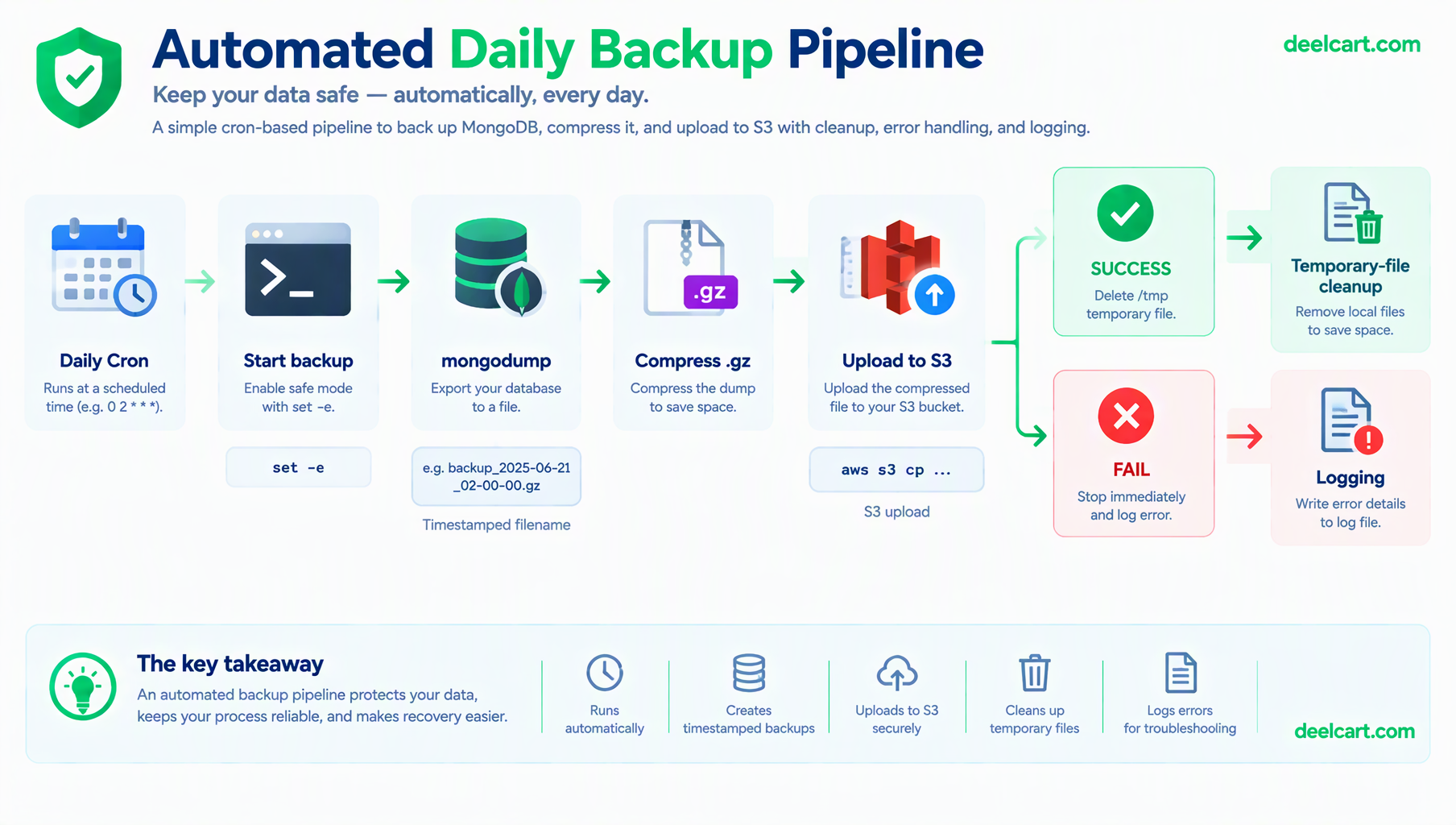
set -e matters more than it looks like it should — without it, if mongodump fails partway through for any reason, the script keeps going and attempts to upload a partial or missing file, then deletes the local temp file regardless, potentially leaving you with neither a valid local backup nor a valid remote one. Failing loudly and immediately is much better than silently producing a broken backup.
Step 4: Scheduling It With Cron
A daily backup at a fixed, low-traffic time (early morning, in whatever timezone your actual traffic is lightest) minimizes the performance impact of the dump running against a live database:
crontab -e0 3 * * * /path/to/backup-script.sh >> /var/log/mongo-backup.log 2>&1This runs at 3 AM daily, and — importantly — redirects both stdout and stderr to a log file. Without that redirect, a cron job's output goes nowhere you'll ever see it, which means a script that's been silently failing every night for weeks can look identical to one that's working, right up until you actually need a backup and discover there isn't one.
Step 5: Retention — Don't Keep Every Backup Forever
Storage costs aside, an unbounded pile of daily backups going back years isn't actually more useful than a sensible retention window — you're very unlikely to need to restore from a backup that's two years old, and every provider's object storage has a lifecycle policy feature built for exactly this. On DigitalOcean Spaces (and most S3-compatible providers), this is configured on the bucket itself rather than in your script:
- Set a lifecycle rule that automatically deletes objects under a given prefix after a set number of days
- This runs entirely on the storage provider's side — your backup script doesn't need any deletion logic of its own
Step 6: The Part Almost Everyone Skips — Actually Testing a Restore
A backup you have never restored from is a backup you don't actually know works. This is the step that's easy to skip because everything up to here already gives you a comforting green checkmark — the script ran, the file uploaded, the log says success. None of that confirms the backup file is actually valid or complete.
Periodically (not necessarily every day, but on a real recurring schedule), pull down a recent backup and restore it somewhere that isn't your production database — a local machine, a throwaway test instance:
aws s3 cp s3://my-backup-bucket/mongodb/mongo-backup-2026-09-20.gz . \
  --endpoint-url https://nyc3.digitaloceanspaces.com

mongorestore --gzip --archive=mongo-backup-2026-09-20.gz --uri="mongodb://127.0.0.1:27017/restore-test"
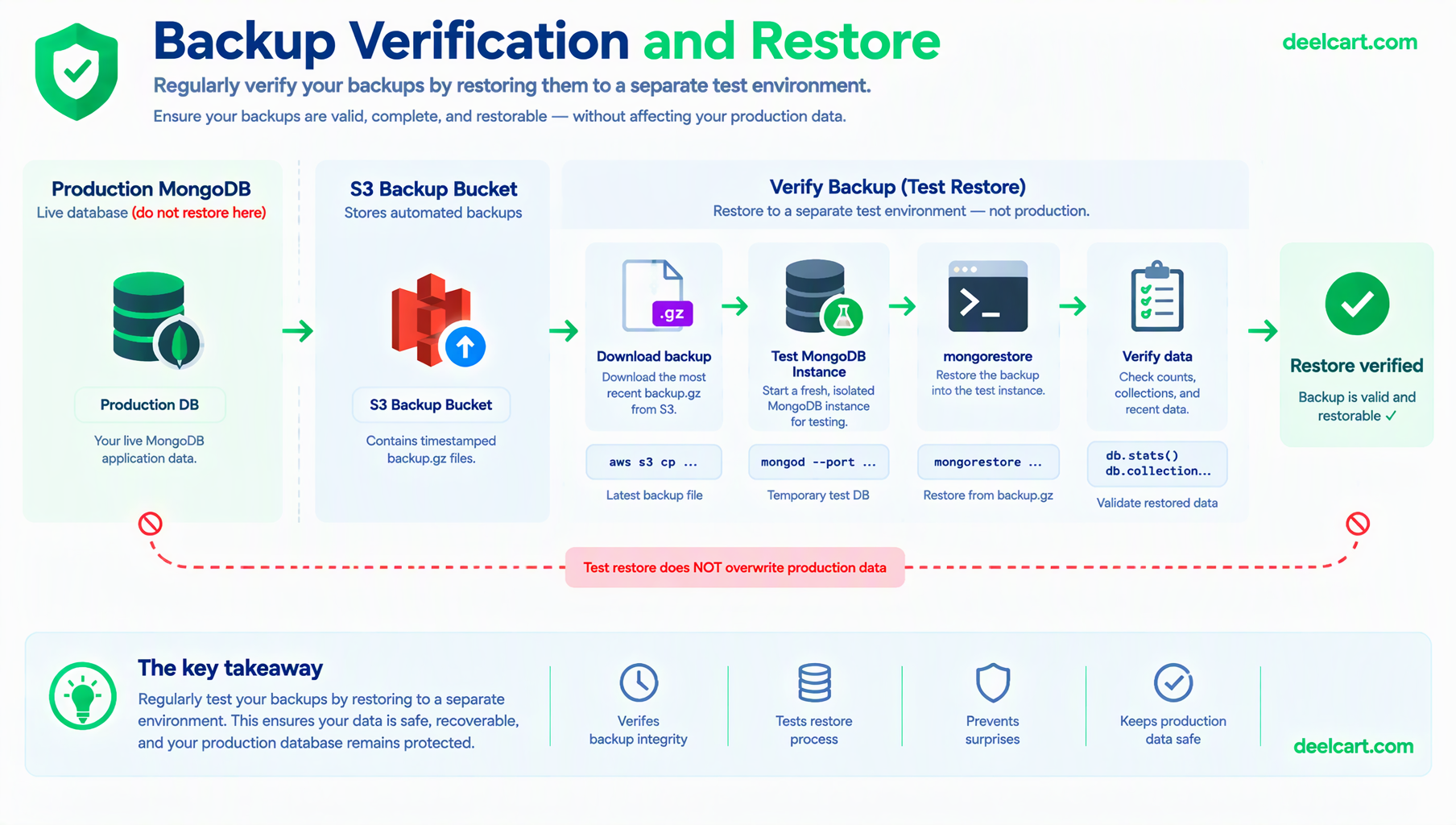
Then actually check that the restored data looks correct and complete — right document counts, recent data present, nothing obviously missing. This is the difference between "I have a backup process" and "I have a backup process I've verified actually works," and only one of those is something you can rely on in an actual emergency.
Securing the Credentials
The AWS CLI needs credentials to authenticate against your bucket, and those shouldn't be full-account keys with access to everything in your storage account. Create a scoped API key or access key limited specifically to the one backup bucket, with only the permissions the script actually needs (write access, and read access if you're scripting restore verification too) — not broader account-level access. If that key were ever exposed, the blast radius should be "this one backup bucket," not your entire cloud account.
Store the credentials as environment variables or in a restricted-permission credentials file, not hardcoded directly in the backup script itself, especially if that script ever ends up in a git repository.
Frequently Asked Questions
Is mongodump sufficient, or do I need a more advanced backup method?
For most self-managed, small-to-medium MongoDB deployments, mongodump/mongorestore is genuinely sufficient and simple to reason about. Larger deployments with strict uptime requirements sometimes use filesystem or volume-level snapshots for faster backup and restore at scale, but that's solving a different problem (backup speed and minimal downtime at large data volumes) than most single-server setups actually have.
How often should backups actually run?
Daily is a reasonable default for most use cases. If your data changes rapidly and losing a day's worth would be genuinely costly, more frequent backups (every few hours) are worth the additional storage cost — the right frequency depends on how much data loss between backups would actually be acceptable to you, not a fixed universal number.
Should backups be encrypted?
Given that a database backup often contains everything sensitive your application stores, encrypting backups at rest is worth doing if your storage provider supports server-side encryption (most S3-compatible providers do, often as a simple bucket-level setting) or by encrypting the file yourself before upload. This is separate from bucket access control — encryption protects the data even if the storage bucket's access controls are ever misconfigured.
What's the actual cost of running this?
Object storage pricing for backups is typically low relative to compute costs — a compressed daily database dump for a small-to-medium site is usually a small fraction of overall hosting cost, and retention policies (Step 5) keep that from growing unbounded over time. The cost of not having backups, if something does go wrong, is categorically different from a storage bill.
Further Reading
Justin is a self-taught developer who builds and runs DeelCart himself — from the articles to the server it runs on. He manages his own Linux infrastructure and writes guides based on tools and workflows he actually uses day to day.